How to Analyze the Search Term Report Correctly

By the Finnex Agency team
What matters most, before we start
The Search Term Report doesn't show the keywords you set: it shows what shoppers actually typed before clicking your ad. That difference makes it the most valuable report in your account.
Knowing how to open it isn't the same as knowing how to read it. Most PPC management mistakes come from misreading its columns, drawing conclusions from too little data, or ignoring the terms that drain your budget.
The right process has three moves: identify what works and promote it to Exact Match, identify what doesn't work and negate it, and don't touch anything that doesn't yet have enough data.
Reviewing it every 7 to 14 days isn't optional if you want your account to improve over time.
Before we start: terms you'll see in this article
If you're just getting started with Amazon Ads, these are the key concepts for understanding everything that follows.
Keyword. The term you choose when setting up a manual campaign. You're telling Amazon: "I want to appear when someone searches for this." For example: "sports water bottle."
Search term. What the shopper actually typed into Amazon's search bar. It can match your keyword exactly, or it can be something completely different.
Search Term Report (STR). The report that shows you the full list of every search term that triggered your ads in a given period, along with performance metrics for each one.
Match type. Defines how much room you give Amazon to show your ad on variations of your keyword. Broad is the most open, Phrase is in the middle, Exact is the most restrictive.
Keyword harvesting. The process of identifying search terms that converted well in auto campaigns or Broad/Phrase campaigns, and moving them as Exact Match keywords into manual campaigns to gain more control over them.
Negative keyword. A word or phrase that tells Amazon not to trigger your ad. If you sell high-end running shoes, you can add "cheap" as a negative to avoid clicks from users looking for something low-cost who won't buy.
ACoS (Advertising Cost of Sales). The percentage of advertising-driven sales that you spent on that advertising. If you spent $30 on ads and generated $150 in sales, your ACoS is 20%.
CTR (Click-Through Rate). The percentage of people who saw your ad and decided to click. If your ad was shown 1,000 times and got 10 clicks, the CTR is 1%.
Conversion Rate (CVR). The percentage of people who clicked your ad and ended up buying. If 100 people landed on your listing and 5 bought, the CVR is 5%.
01. The report that tells you the most about your campaigns
The difference between what you set and what actually happened
When you set up a manual campaign in Amazon Ads, you choose keywords. Those keywords are your intent: "I want to appear for these terms." But Amazon doesn't always show your ad for exactly what you asked.
Depending on the match type, Amazon can trigger your ad on variations, synonyms, related terms, or combinations you never imagined. That can be an opportunity or a problem. The Search Term Report is what lets you know which of the two you're dealing with.
The distinction that changes everything:
Your keyword is "laptop backpack."
Your ad may have been triggered for: "15-inch laptop backpack," "durable school backpack," "computer bag," "cheap gaming backpack," or "kids backpack."
Without the STR, you have no idea where your money is going.
Auto campaigns amplify this effect: Amazon completely chooses where to show your ad. Without reviewing the STR, you could be paying for weeks for clicks that have nothing to do with your product.
Why it's the most underrated report in the account
In every audit we run at Finnex, the pattern repeats: the account has active campaigns, there's constant spend, and the STR has gone unreviewed for weeks or months. The result is predictable: accumulated spend on irrelevant terms that nobody caught, and winning keywords that were never promoted because nobody identified them.
The STR is the only source that tells you what's happening in reality, not in theory. It doesn't show you what you wanted to happen when you set up the campaign: it shows you what real shoppers searched, whether they clicked, and whether they bought.
02. How to find and download it, step by step
The updated path inside Seller Central (2025–2026)
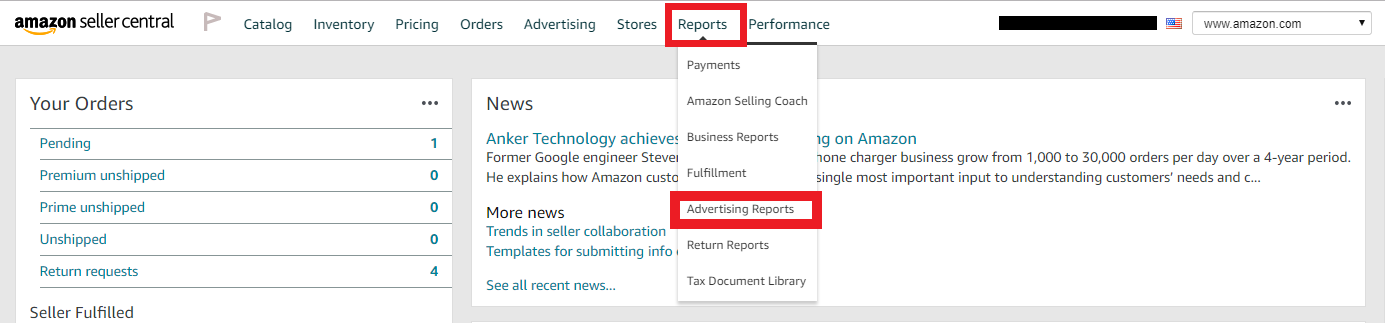
The old path mentioned in many tutorials (Reports → Advertising Reports from the Seller Central home) is now outdated. This is the correct path as of today:
Step 1: Go to Campaign Manager. From the top menu in Seller Central, click Advertising → Campaign Manager.
 Reference image — Step 1: the Advertising menu in Seller Central. (Source: Tinuiti, illustrative)
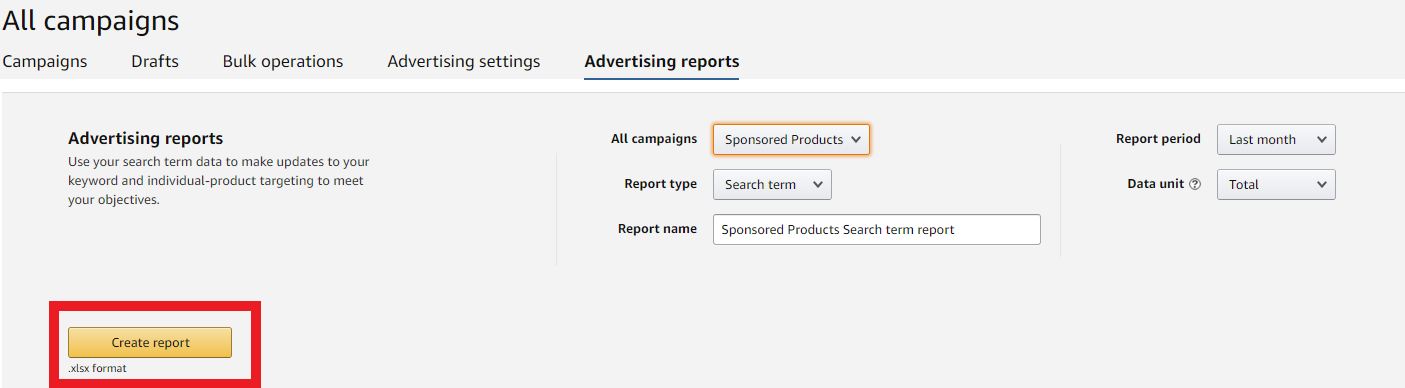
Step 2: Open the reports section. In the left panel of Campaign Manager, find the Measurement & Reporting section and click Sponsored Ads Reports. Then click Create Report.
 Reference image — Step 2: the report creation form. (Source: Tinuiti, illustrative)
Step 3: Configure the report. On the creation screen, fill in the following fields:
- Campaign Type: Sponsored Products (always start here; Sponsored Brands has its own separate report).
- Report Type: Search Term.
- Time Unit: Daily (daily granularity; it gives you more to work with than Summary).
- Reporting Period: The last 14 to 30 days. Amazon keeps data for up to 65 days; after that it's lost forever.
Click Run Report.
Step 4: Download the file. Once generated, the report appears in the list of available reports with a download button in the right-hand column. Download the CSV file.
 Reference image — Step 4: the list of available reports. (Source: Tinuiti, illustrative)
Step 5: Open the CSV in Excel or Google Sheets. The downloaded file is a flat CSV. Open it in Excel or Google Sheets. If you open it directly, everything may appear in a single column: use the Data → Text to Columns function (Excel) or simply import it into Google Sheets so the columns are split automatically.
This is what the report looks like once opened correctly:
 Reference image — what the STR looks like opened as a spreadsheet. (Source: Tinuiti, illustrative)
Important note on data retention: Amazon deletes STR data after 60-65 days. There's no way to recover older data. If you don't download the report regularly, you lose history you can't get back.
Download the STR at least every 30 days. Ideally, every 7 to 14 days.
Sponsored Products vs. Sponsored Brands: are they the same?
No. Each campaign type generates its own report with important differences:
| Feature | Sponsored Products | Sponsored Brands |
|---|---|---|
| Attribution window | 7 days | 14 days |
| Brand metrics | No | Yes (sales of non-promoted ASINs) |
| Level of detail | By keyword and search term | Similar, with additional brand data |
| Recommended frequency | Every 7-14 days | Every 14-21 days |
For most sellers, the initial focus should be on the Sponsored Products report, where the bulk of the spend and the most actionable data live.
03. The columns that really matter
How to read the report without getting lost in the data
The CSV file has many columns. They don't all matter equally. Understanding what each one measures is the step before any useful analysis.
The structural columns (they tell you "what happened"):
- Search Term. The exact word or phrase the shopper typed. It's the most important column in the report.
- Targeting. The keyword or ASIN target you set in your campaign that triggered that search term. It lets you understand the relationship between what you asked for and what Amazon showed.
- Match Type. The match type that allowed that search term to trigger your ad (Broad, Phrase, Exact, or Auto).
- Campaign Name / Ad Group. Which campaign and ad group that term came from. Essential for knowing whether the problem or the opportunity is in a specific campaign.
The volume columns (they tell you "how much"):
- Impressions. How many times your ad was shown for that term. If it's very low (under 100-200), the data isn't enough to make decisions.
- Clicks. How many times people clicked your ad from that term. The minimum threshold to evaluate a term with confidence is 15-20 clicks.
- Spend. How much you spent on clicks for that term. This column alongside the sales column tells you whether a term is generating returns or burning budget.
The performance columns (they tell you "how well"):
- CTR (Click-Through Rate). Clicks divided by impressions. A CTR below 0.3% generally indicates that the term isn't relevant to your product, or that your main image and price aren't competitive for that search.
- CPC (Cost Per Click). How much you paid on average for each click. Useful for evaluating spend efficiency and comparing similar terms.
- 7-Day Orders. How many purchases were attributed to clicks on that term in the following 7 days. It's the most direct outcome data.
- 7-Day Sales. The revenue generated by those purchases.
- ACoS. Spend divided by sales. The efficiency indicator per term.
- Conversion Rate (CVR). Orders divided by clicks. It tells you what percentage of the people who landed on your listing from that term ended up buying.
The column many ignore and shouldn't:
Conversion Rate per search term is a powerful signal. If a term has many clicks but a very low CVR, the problem may be in the listing (image, price, reviews) and not in the campaign. If the CVR is high but spend is low, that term deserves more investment.
04. The 4-quadrant framework
A system to classify each term and know what to do with it
Reviewing the STR without a classification system leads to slow analysis and inconsistent decisions. The framework we use at Finnex divides each term into one of four quadrants based on its behavior. Each quadrant has a specific action.
| Quadrant | Criteria | Action |
|---|---|---|
| 1. Winners | Converts well (solid CVR) with ACoS near or below target | Promote to Exact Match in a manual campaign. Raise bid 10-20%. |
| 2. Candidates to improve | Enough clicks (10+), low conversion, but the term is relevant | Review the listing: image, price, reviews. Don't negate yet. |
| 3. Candidates to negate | 20+ clicks with no orders, or ACoS more than 2-3x target | Add as negative exact. Stop paying for that traffic. |
| 4. Not enough data | Fewer than 15-20 clicks in the analyzed period | Don't touch. Wait for more data before any decision. |
Quadrant 1: the winners
A winning term is one that proves, with real data, that shoppers who type that phrase are willing to buy your product.
Leaving a winner in an auto campaign or a Broad Match campaign is a costly mistake: Amazon may or may not show it, it spreads the budget across many terms, and that winner doesn't get the investment it deserves.
The correct move is to isolate it: create a manual campaign with that term in Exact Match and assign it a competitive bid. At the same time, add it as a negative in the auto or Broad campaign so it doesn't compete against itself.
Concrete example: you review the STR and find that "1 liter steel water bottle for men" generated 38 clicks, 6 orders, and a 14% ACoS over the last 21 days. Your margin allows it.
That term is a winner. You promote it to Exact Match in a manual campaign, raise its bid, and negate it in the auto campaign.
From there, that term has its own space, with full control over how much you invest in it.
Quadrant 2: the candidates to improve
A term with many clicks but no conversions isn't always a campaign problem. Sometimes the traffic is right but the listing doesn't close the sale.
Before negating a relevant term, ask yourself: what does the shopper see when they land on your listing from that search? If there's a mismatch between what the term promises and what your main image, price, or reviews show, the problem is on the product page, not in the campaign.
Terms in this quadrant hold on a bit longer while you work on the listing. If after improvements the term still doesn't convert, move it to quadrant 3.
Quadrant 3: the candidates to negate
A term that accumulates spend without generating sales is a direct drain on the budget. Every dollar that goes to that term is a dollar that can't go to one that does convert.
Practical rule:
- 20 clicks with no orders: in most categories, this is enough signal to negate.
- ACoS above 2-3x your target: the term is converting, but at an unsustainable cost.
- Completely irrelevant terms: any search that clearly doesn't match your product gets negated immediately, without waiting for clicks.
Important when negating: always use Negative Exact as your first option. Negative Phrase can block searches you actually care about if they share words with the term you want to eliminate. Negative Exact blocks only that exact phrase. It's safer.
Quadrant 4: not enough data
This is the most ignored quadrant and also the most important for avoiding mistakes.
A term with 5 clicks and 0 conversions isn't necessarily bad. With 5 clicks you don't have enough information to know anything. If you negate it hastily, you could eliminate a term that would have converted well with more traffic.
The minimum threshold for making any decision about a term is 15-20 clicks. Below that number, the information has no statistical significance.
05. Keyword harvesting: the process that grows the account
Why well-managed accounts improve on their own over time
Keyword harvesting is the mechanism by which an Amazon Ads account becomes more efficient with every review. It's not magic: it's a systematic process that turns the STR's learnings into a more precise campaign structure.
Without harvesting, campaigns stay static. The auto campaigns keep spending on the same mixed-up terms, the manual ones incorporate nothing new, and the account's overall efficiency doesn't improve even though the market and shoppers are sending clear signals about what works.
The harvesting cycle (step by step):
- The auto campaign generates exploratory traffic across many different terms.
- You review the STR every 7-14 days and apply the 4-quadrant framework.
- The winning terms (Quadrant 1) are added as Exact Match in a manual campaign.
- Those same terms are added as negatives in the auto campaign so they don't compete with each other.
- The Quadrant 3 terms are negated in every campaign where they appear.
- The cycle repeats. The auto campaign keeps discovering, the manual one keeps accumulating what works.
The compound effect of harvesting: an account that harvests consistently for 6 months has manual campaigns full of terms validated by real shoppers. An account that doesn't has the same keywords from day one, with no new learning incorporated.
The efficiency gap between the two isn't marginal. It's structural.
How to organize harvesting in practice
You don't need special software. With the STR CSV and a basic filter, you can complete the process in 30-45 minutes:
- Filter by period. Use the last 14-21 days. Shorter periods can have too little data; longer periods mix signals from different contexts.
- Sort by total spend (descending). Start where the most money went.
- Filter out terms with fewer than 15 clicks. They're Quadrant 4. Don't touch them yet.
- Classify the rest with the 4-quadrant framework.
- Execute the actions per quadrant: promote winners, prepare the negatives list, flag candidates to improve for follow-up.
- Record the changes you made, with a date. Without a record, at the next review you won't know what was already done.
06. Negatives: how to stop the spend that brings no return
The real impact of negatives on account efficiency
Adding negatives isn't a defensive or minor task. It's one of the highest-impact actions in the short term for improving an account's efficiency.
When you block a term that was consuming budget without converting, that budget becomes available for terms that do work. The visible result is an improvement in average ACoS without changing any bid and without increasing total spend.
Types of negatives and when to use each:
| Type | How it works | When to use it |
|---|---|---|
| Negative Exact | Blocks exactly that phrase, and only that | For specific terms that don't convert. It's the most precise and safe. |
| Negative Phrase | Blocks any search that contains that phrase | For problem words that always signal irrelevance (e.g., "free," "used," "secondhand") |
| Campaign-level negative | Applies to the entire campaign | For terms you don't want in any ad group of that campaign |
| Ad-group-level negative | Applies only to that ad group | For more surgical exclusions within a campaign |
The most common mistake with negatives: using Negative Phrase when the intent was Negative Exact. If you have the term "waterproof laptop backpack" and you negate it as Negative Phrase using "laptop backpack," you're blocking every search that contains that phrase, including searches you do care about.
General rule: always start with Negative Exact. Use Negative Phrase only when you're certain that no variation of that phrase is relevant to your product.
Categories of terms you can negate directly
Beyond the quadrant analysis, there are categories that are direct candidates without needing much history:
- Competitor brand terms (if you don't have an explicit conquest strategy).
- Terms from a different category than yours.
- Modifiers that signal incompatible intent: "free," "how to," "tutorial," "DIY," "secondhand," "used," "cheap" (if your product is premium).
- Informational searches with no purchase intent.
07. How often to review and what to record
The cadence that makes the improvement real
Recommended cadence by spend level:
| Monthly Amazon Ads spend | STR review frequency |
|---|---|
| Under $500/month | Every 21 days |
| $500 - $2,000/month | Every 14 days |
| $2,000 - $5,000/month | Every 7-10 days |
| Over $5,000/month | Every 7 days (or automate the download) |
The logic is simple: the higher the spend, the faster waste accumulates on bad terms, and the more valuable it is to identify new winners.
What to record every time you review
Without a record, the optimization process loses continuity. At each review, note:
- The date of the analysis.
- The period of the report analyzed (e.g., June 1 to 21).
- Terms promoted to Exact Match (which ones, to which campaign, at what initial bid).
- Negatives added (which terms, in which campaigns, with what type of negative).
- Terms under observation (Quadrant 2 or 4 that don't yet have enough data).
You don't need a complex system. A shared document or a simple spreadsheet with these columns is enough to keep the history and avoid making the same decisions twice.
08. The most common mistakes when analyzing the STR
What we see in almost every account that comes in for an audit
-
Analyzing periods that are too short. A 3-day report has so little data that any conclusion you draw is statistical noise. A good starting point is always 14-21 days. If the account has low daily spend, you can extend the period to 30 days for more volume.
-
Making decisions with too few clicks. A term with 5 clicks and 0 conversions says nothing. The useful minimum is 15-20 clicks. Below that, the term goes to Quadrant 4 automatically.
-
Mixing branded campaign analysis with generic campaigns. Branded keywords have structurally higher CTR and CVR because the shopper already knows your product. If you analyze both in the same block, the good branded numbers hide the poor performance of generic terms. Always segment the analysis by campaign type before drawing conclusions.
-
Only looking at ACoS per term without considering volume. A term with an 8% ACoS looks like a winner. But if it generated 1 sale in 60 days with $4 of spend, it has no real weight in the account. ACoS has to be read alongside click volume, orders, and total spend.
-
Negating too quickly. The temptation to clean out terms with high ACoS or no sales is understandable, but acting on terms with little data can eliminate real opportunities. The correct process is to wait for the minimum click threshold before deciding.
-
Not separating the analysis by match type. A search term that came from Broad Match and one that came from Exact Match aren't interpreted the same way even if they're identical. The Broad one may be a variation Amazon decided to match; the Exact one is a more direct signal of intent. Filter by match type to understand the context of each term.
-
Reviewing the STR but not executing the changes. Analysis without execution is half-finished work. If you identify a winner but don't promote it, or detect a term that drains budget but don't negate it, the review produced no real impact. The value of the STR is in the changes it produces, not in the analysis itself.
To wrap up
The Search Term Report is the most honest report in your Amazon Ads account. It doesn't show you what you planned: it shows you what happened in reality, with the real shoppers who typed something into Amazon and did (or didn't) buy your product.
Knowing how to download it is the bare minimum. Knowing how to read it with judgment is what separates an account that improves week after week from one that spends statically without learning anything.
The process isn't complex, but it requires consistency:
- Download it regularly, before the data is lost.
- Classify each term with the 4-quadrant framework.
- Promote winners to Exact Match and give them budget with control.
- Negate what drains budget without return.
- Don't touch what doesn't yet have enough data.
- Repeat the cycle every 7 to 14 days.
Three key ideas to take from this article:
- The STR doesn't show your keywords: it shows what shoppers searched. That distinction is the foundation of any useful analysis.
- Without enough data (a minimum of 15-20 clicks per term), no correct decision is possible.
- The real value of the STR isn't in looking at it, but in the changes it produces in the structure of your account.
If you'd like someone to review your account's Search Term Report with judgment and tell you exactly where the inefficient spend is and what to move first, at Finnex we run PPC audits that include a full analysis of your STR, your campaign structure, and the real improvement potential. You can request your free audit and get a clear diagnosis within 48 hours.
Keep reading

Amazon Ads Scaling Strategy: From Campaigns to Growth
How to move from active campaigns to a real Amazon Ads scaling system: structure, the PPC-organic flywheel, inventory, and TACoS.
Read more →
How to Tell if Your Amazon PPC Is Poorly Structured
Your account can be running campaigns and still be poorly structured. 8 signals that something is broken in your Amazon Ads before scaling spend.
Read more →
Defend Your Brand on Amazon Ads Without Inflating Spend
Defending your brand on Amazon isn't about spend — it's about structure. Protect branded searches and stop competitors from capturing your traffic.
Read more →